Event Planner's Guide: Fullscreen Digital Clock for Presentations & Timers
Event planners juggle countless details—sessions starting late or attendees missing keynotes shouldn’t be one. A perfectly crafted schedule can start to unravel. A keynote speaker runs over their allotted time, coffee breaks stretch on too long, and attendees lose track of when the next session begins. Managing an event’s tempo is one of the biggest challenges in the industry. What if you could command the flow of your event with a single, elegant, and highly visible tool?
The modern solution isn't another complicated app or expensive piece of hardware. It's a powerful, browser-based tool that transforms any screen into a professional timekeeping hub. Discover how DigitalClock.cc offers a free customizable event clock to elevate your event's time management, keep speakers on track, and ensure your audience is always in the right place at the right time.
Streamline Your Presentation Timing with a Dedicated Tool
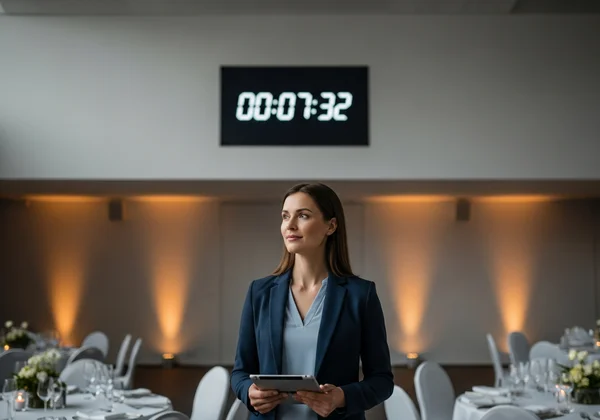
Precise timing is the backbone of any successful presentation, workshop, or conference. When speakers know exactly how much time they have left, they deliver better, more concise content. A dedicated presentation timer tool removes ambiguity and empowers everyone to stick to the agenda.
Why Traditional Clocks Fall Short in Dynamic Events
Relying on a speaker's watch, a small clock on a laptop, or a phone timer is a recipe for disaster. These methods are often too small for the speaker to see from a distance, invisible to the audience, and look unprofessional. Small clocks force speakers to squint, breaking their focus. Worse, they prevent audiences from tracking time together. This often leads to delayed sessions.
Setting Up Your Fullscreen Timer for Flawless Speaker Sessions
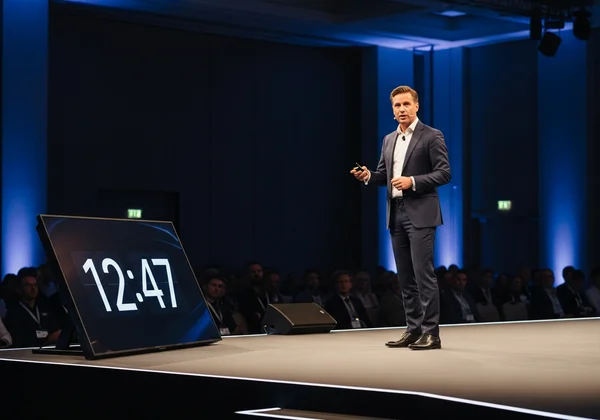
Picture this: backstage, your speaker checks a high-definition digital timer on a screen at the back of the room, visible only to them, or on a monitor facing the stage. This is the power of a fullscreen clock. With DigitalClock.cc, setup is instant. Simply open the website on any laptop connected to a display.
You can configure the clock to count down from a specific time (e.g., 20 minutes for a presentation) or show the current time in a large, easy-to-read format. This visual anchor keeps speakers aware of their timing without being distracting. It’s a silent, professional co-pilot for every person on your stage. Ready to try it? It takes seconds to set up your multi-screen conference timer and see the difference.
Customizing Visual Cues for Enhanced Speaker & Audience Engagement
A generic timer works, but a customized one enhances your event's branding and effectiveness. DigitalClock.cc lets you customize fonts, colors, and backgrounds. Match these to your event theme for instant brand cohesion.
For more advanced control, you can use color cues. For instance, the timer could be green for the majority of the talk, turn yellow when there are five minutes left, and switch to red for the final minute. These visual prompts are instantly understood by speakers, allowing them to wrap up smoothly without an organizer awkwardly waving from the wings.
Boost Attendee Engagement with a Fullscreen Digital Clock
Keeping attendees engaged goes beyond great content; it’s about managing the flow of the entire day. Smooth transitions between sessions are crucial. Using fullscreen countdown timers is an incredibly effective tool for guiding your audience and building anticipation.
Designing Impactful Break & Session Transition Timers
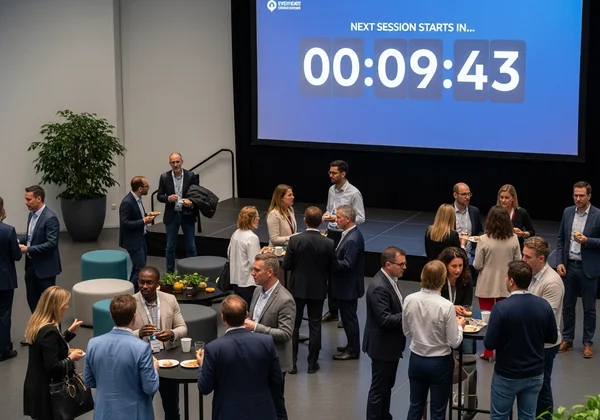
How many times have you seen a coffee break bleed into the next session, causing delays for the rest of the day? A public-facing countdown timer solves this problem elegantly. By displaying a large countdown on the main presentation screen, you clearly communicate when the next session will begin.
Attendees can network and relax, knowing exactly when they need to be back in their seats. A 15-minute countdown for a break or a 5-minute timer before a keynote begins creates a sense of shared urgency and respect for the schedule. It’s a simple change that makes your event feel more organized and professional.
The Power of a Large Digital Clock for Seamless Event Flow
For large venues like auditoriums and exhibition halls, visibility is key. A large digital clock ensures that everyone, from the front row to the back of the room, can see the time. Projected onto screens, the clock becomes your event's universal timekeeper.
This visual consistency helps manage audience expectations. People know when a session will end, when lunch starts, and when the final keynote will begin. This clarity reduces anxiety and allows attendees to fully immerse themselves in the experience, confident that they won't miss anything important.
Integrating Your Online Digital Timer with Projectors & Displays
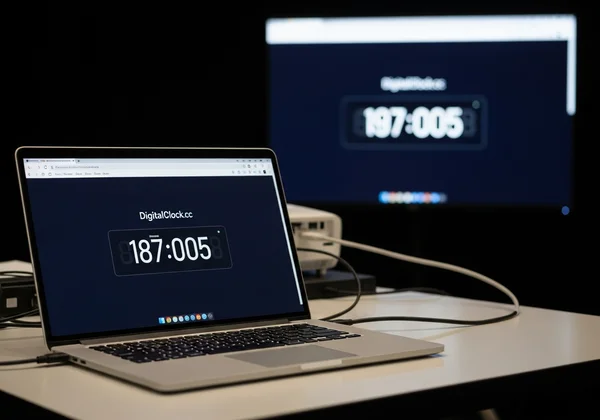
One of the best features of a browser-based tool is its simplicity. There is no software to install. To display your clock or timer on a big screen, you just need a laptop with an internet connection and an HDMI cable.
Open your customized clock on DigitalClock.cc, press the fullscreen button, and your professional timer is live. This online digital timer works seamlessly on any computer, whether it's a Mac or a PC. You can even run it from a tablet. This flexibility makes it an essential tool for any event, no matter the size or technical setup.
Beyond Basic Timing: Advanced Strategies for Event Digital Clocks
Once you master the basics of speaker timers and break countdowns, you can use a digital clock for events in more creative ways to further enhance the experience for both your team and your attendees.
Managing Multi-Session Agendas and Workshop Schedules
For complex events with multiple tracks or workshops running simultaneously, time management is even more critical. You can set up dedicated laptops or tablets—perfect for multi-screen setups—outside each room displaying a unique clock or timer for that specific session.
This "at-a-glance" information system helps attendees navigate your event. They can quickly see which session is in progress and when the next one starts. It also helps your event staff and volunteers stay perfectly synchronized across the entire venue.
Creating Real-time Agenda Displays with a Customizable Lock Screen Clock
The customization features open up even more possibilities. Why not use the background image feature to display the agenda for that room? You can create a simple graphic with the session titles and times and upload it as the background for your realtime digital clock.
This turns your time display into a dynamic digital signage solution. The screen shows the current time overlaid on the day's schedule, providing all the necessary information in one place. It's a professional touch that attendees will appreciate.
Post-Event Reflection: Analyzing Timing for Future Improvements
Your use of the clock doesn't have to end when the event does. If you assigned specific time slots for each speaker, you can use your records to analyze performance. Did certain types of sessions consistently run long? Was the 15-minute break long enough? This data provides valuable insights that can help you plan an even tighter, more effective schedule for your next event.
Transform Your Next Event with DigitalClock.cc
From keeping individual speakers on track to managing the flow of a thousand-person conference, effective time management is the secret to a successful event. A visible, customizable, and easy-to-use digital clock is no longer a nice-to-have; it's an essential part of the modern event planner's toolkit.
DigitalClock.cc provides a free, powerful, and endlessly flexible solution. It streamlines presentation timing, boosts attendee engagement, and gives you the control you need to execute a flawless event.
Give your next event the precision touch it deserves. Customize your free event clock and see the professional difference it makes.
Digital Clock Setup & Customization for Events
How do I get a fullscreen clock on my computer for my event?
Getting a fullscreen clock is incredibly simple with DigitalClock.cc. Just visit the website on any computer's web browser. The clock will appear instantly. To make it fullscreen, click the maximize icon in the top toolbar. There is no software to download or install, making it perfect for any event computer.
Can I customize the look of my event presentation timer?
Absolutely. Customization is a key feature. You can change the font, text color, and background color to match your event's branding. You can even upload a custom background image, such as your event logo or a session schedule. This allows you to create a timer that looks fully integrated and professional.
Is DigitalClock.cc free to use for event countdowns?
Yes, all the core features of DigitalClock.cc, including the fullscreen clock, timer, and customization options, are completely free to use. This makes it an accessible and budget-friendly solution for events of all sizes, from small workshops to large-scale conferences.
How to display the clock on projectors or second screens
Yes, it's the perfect tool for multi-screen setups. Simply connect your laptop to a projector or a second monitor, and drag the browser window with the clock onto that screen before making it fullscreen. This allows you to control the timer from your laptop while displaying a large, clear clock for your speaker or audience. You can start your setup now by getting a fullscreen clock on your machine.