Focus Mode Clock: FullScreen Timer for Distraction-Free Work
In today's fast-paced digital world, staying focused is a constant battle. Notifications, open tabs, and even the small clock on your computer screen can pull you out of deep work. Are you struggling to stay in the zone during important tasks? You need a solution that keeps you aware of the time without becoming another distraction.
This guide will show you how to use a fullscreen digital clock as the ultimate focus tool. We’ll explore how a dedicated, minimalist clock can enhance your concentration. You'll learn how to integrate a simple yet powerful tool, DigitalClock.cc, with your Windows and Mac focus modes. It's time to create a workspace that respects your workflow and keeps you on track.
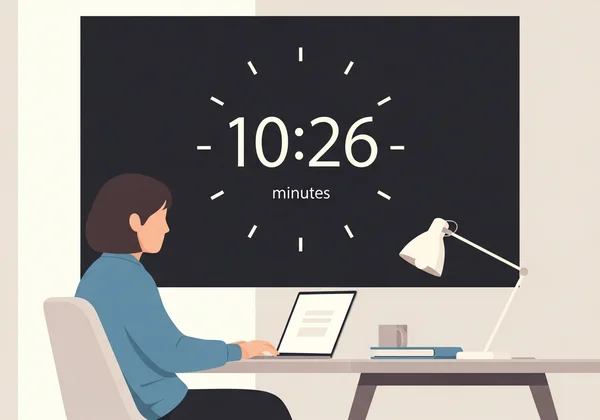
Why Focus Mode Needs a Dedicated Clock Display
When you activate focus mode on your computer, the goal is to eliminate anything that might break your concentration. Yet, time awareness remains crucial for managing your tasks and breaks. A standard clock, often cluttered with other information, can be counterproductive. A dedicated focus mode clock solves this problem by providing just the essential information in a clean, unobtrusive way.
This approach isn't just about convenience; it's rooted in how our brains process information during intense concentration.
The Psychology of Time Perception During Deep Work
Deep work can distort your perception of time. Sometimes an hour feels like just minutes, while other times a short task seems endless. This happens because your brain focuses all its resources on your task, not on tracking time passing.
A large, clear clock in your view serves as a subtle anchor to reality. It helps you stay aware of your schedule subconsciously. You won't need to actively check the time, which would otherwise break your flow state. The right kind of visual timer supports your focus rather than competing for it.
How Traditional Timers Break Your Concentration Flow
Think about how you usually check the time. You glance at your phone, look at the corner of your screen, or open a new tab. Each of these actions, however small, is a context switch. Your brain has to disengage from your main task, process the time, and then re-engage. This is where you lose momentum.
Traditional timers and clocks often come with extra features that cause distractions:
- Small size: A tiny clock forces you to squint and actively search for it.
- Cluttered interface: System clocks are surrounded by notifications, battery status, and other icons.
- Audible alerts: Alarms can be jarring and abruptly pull you out of a focused state.
A dedicated fullscreen clock eliminates these issues, providing a seamless way to stay time-aware.
Windows 11 Focus Session Integration Guide
Windows 11 includes a native feature called "Focus sessions" (previously Focus Assist) designed to minimize distractions. You can enhance this feature by adding a dedicated clock from DigitalClock.cc to your workflow, creating a powerful productivity environment. It's the perfect solution for a Windows 11 distraction-free timer.
Setting Up DigitalClock.cc in Focus Assist Mode
Integrating a clean, fullscreen clock is surprisingly simple. You don't need to install any software. Just use your web browser.
-
Open your preferred web browser and navigate to the DigitalClock.cc homepage.
-
The clock will immediately display in a large, clear font.
-
Before starting your focus session, press F11 on your keyboard to make the browser window fullscreen. The clock will now fill your entire display without any tabs or toolbars.
-
Start your Focus session in Windows. All notifications will be silenced, and you will have a beautiful, dedicated timer on your screen. For a multi-monitor setup, you can drag the browser to a secondary screen to serve as your dedicated time-keeping display.
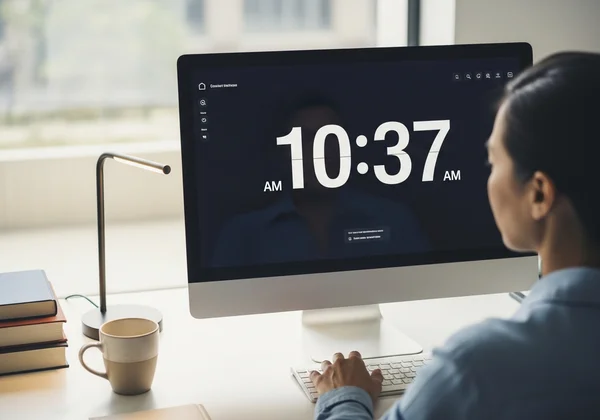
Customizing Clock Appearance for Minimal Distraction
The true power of using DigitalClock.cc as a focus tool lies in its customization. The goal is to create a display that is visible but not distracting.
- Color Scheme: Choose a low-contrast color scheme. A dark background (like charcoal grey or deep navy) with a muted text color (like off-white or light grey) is often best for reducing eye strain. Avoid bright, jarring colors.
- Font Style: Select a simple, clean font like Roboto Mono. These minimalist fonts are easy to read at a glance and don't draw unnecessary attention.
- Opacity: If you want to overlay the clock on your desktop, you can adjust the overlay opacity in the settings. This allows you to see your wallpaper through the clock, making it feel more integrated.
Take a few moments to create your ideal clock before your next work session. You'll be amazed at the difference it makes.
macOS Focus Mode and Fullscreen Widget Configuration
Apple users can also create the perfect focus environment. macOS's Focus modes and Mission Control features are ideal for setting up a dedicated macOS fullscreen widget. By combining these native tools with a web-based clock, you can build a distraction-free digital sanctuary.
Creating a Dedicated Desktop Space for Your Timer
One of the best features of macOS is "Spaces," which allows you to create multiple virtual desktops. You can dedicate one of these spaces entirely to your focus clock.
- Open your web browser and go to DigitalClock.cc.
- Customize the clock's appearance for a minimalist look.
- Enter fullscreen mode (usually by clicking the green button in the top-left corner of the window or using the
Control + Command + Fshortcut). - Open Mission Control (F3 key or a four-finger swipe up).
- Drag the fullscreen browser window to a new, empty Desktop space on the right.
Now, you can simply swipe with three or four fingers to switch between your work and your dedicated clock space. It keeps your main workspace clean while your timer is just a quick gesture away.
Optimizing Clock Settings for Do Not Disturb Mode
macOS Focus modes (including Do Not Disturb) are designed to silence notifications and help you concentrate. To make your clock the perfect companion for this mode, optimize its settings.
- Choose a dark theme: Just like with Windows, a dark background with dim text reduces glare and helps maintain focus, especially in low-light environments.
- Disable seconds: For long work sessions, seeing the seconds tick by can create a sense of anxiety. In the settings, you can toggle the display to show only hours and minutes.
- Set a background image: For a more personalized touch, you can upload a calming background image, like a serene landscape or a simple texture.
This setup ensures your do not disturb display is both functional and aesthetically pleasing, reinforcing a calm and productive mindset.
Advanced Focus Mode Clock Techniques for Power Users
Once you've mastered the basics, you can explore more advanced techniques to further enhance your productivity. These methods are for users who want to fine-tune their workflows and get the most out of their focus sessions.
Creating Multi-Stage Timers for Complex Workflows
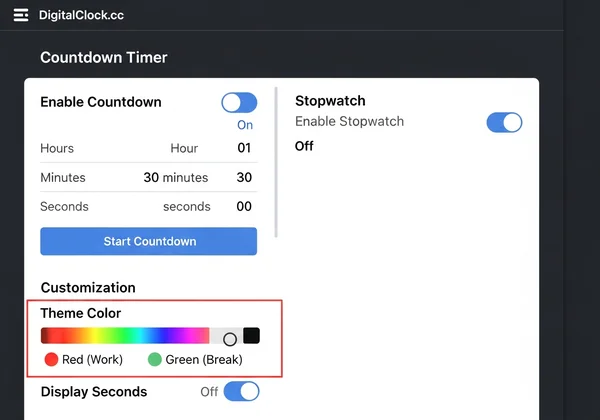
Many projects involve multiple stages. For example, you might use the Pomodoro Technique, which involves 25-minute work sprints followed by 5-minute breaks. You can use the timer functions on DigitalClock.cc for this.
Set the countdown timer for your first work block. When the time is up, a gentle chime can signal you to take a break. Then, reset it for your break period. This method helps you structure complex tasks without needing a separate app. You can even customize the clock's appearance for work sessions (e.g., a red background) and break times (e.g., a green background) to provide a clear visual cue.
Syncing Your Focus Clock Across Multiple Devices
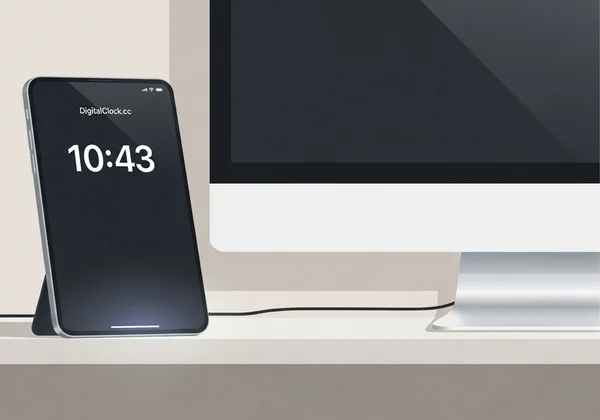
Your focus setup shouldn't be confined to just one device. Since DigitalClock.cc is web-based, it's incredibly portable. You can use an old tablet or smartphone as a dedicated physical clock right on your desk.
Simply open the website on your secondary device and configure it with your preferred minimalist settings. This frees up your main computer screen entirely while still giving you a beautiful, visible timer. It's a fantastic way to upcycle old tech into a modern productivity tool.
Transform Your Focus Sessions with the Perfect Timer
Distractions are everywhere these days. That's why taking charge of your digital space is essential for truly deep work. A simple, customizable full screen clock is more than just a way to tell time—it's a statement of intent. It tells your brain that it's time to focus.
Throughout this guide, we've shown why having a dedicated time display matters and walked you through setting it up on both Windows and Mac systems. By using a tool like DigitalClock.cc, you can:
- Reduce context switching and maintain your flow state.
- Create a visually calm and aesthetically pleasing workspace.
- Structure your work and breaks with advanced timer techniques.
The best way to understand the benefits is to experience them yourself. Stop letting distracting clocks break your concentration.
Ready to build your ultimate focus environment? Try our free tool and design your perfect fullscreen focus clock today.
The Takeaway
How do I keep a clock visible in focus mode without distractions?
The key is customization. Use a fullscreen clock with a minimalist design. Choose a low-contrast color scheme (e.g., dark gray background, light gray text) and a simple font. This makes the clock visible but not attention-grabbing. You can configure all of these settings easily on DigitalClock.cc.
Can I set up different clock displays for different focus sessions?
Absolutely. Since DigitalClock.cc is web-based, you can bookmark different URLs with custom settings. For example, you could have one bookmark for a "Deep Work" clock (dark, no seconds) and another for a "Creative" clock (brighter colors). This lets you switch between different visual moods instantly.
What are the best clock settings for productivity apps like Notion or Figma?
When using apps like Notion or Figma, a great setup is a second monitor dedicated to your fullscreen clock. If you only have one screen, use the opacity setting on DigitalClock.cc to create a semi-transparent overlay. Set it to a very low opacity (10-20%) so it's barely visible but still there when you need a quick time check without switching windows.
Does DigitalClock.cc work with third-party focus timer applications?
While it doesn't integrate directly via an API, it serves as a perfect visual companion. Many focus apps run in the background or as small menu bar items. You can use them to manage your session logic (like Pomodoro timers) while using DigitalClock.cc as the large, fullscreen visual display for timekeeping.
How can I minimize clock visibility during breaks between focus sessions?
A simple way is to change the background. During a focus session, you might use a neutral color. When it's time for a break, switch to a browser tab with a clock that has a bright, relaxing background image. This visual shift acts as a clear signal to your brain that the work period is over and it's time to rest.