Productivity Unleashed: Advanced Time Management with Fullscreen Digital Clocks
When every minute counts, your time management tools need to work as hard as you do. You've likely experimented with various productivity techniques. These range from basic to-do lists to complex organizational systems. But what if you could transform your simple digital clock into a sophisticated time management command center? How can a single tool change the way you work?
In this guide, we'll show you practical ways to transform a simple digital clock into your personal productivity command center. By using this tool, you can boost productivity like never before. Instead of just watching minutes pass, you will learn to use time as a strategic resource.
The right visual environment is the foundation of deep work. When you use fullscreen mode on your monitor, you eliminate the distractions of browser tabs and notification icons. This guide covers three powerful frameworks: the Eisenhower Matrix, Time Blocking, and Time Boxing. We'll show you exactly how to implement each one using modern digital clock tools.
The Eisenhower Matrix: Digital Clock Implementation
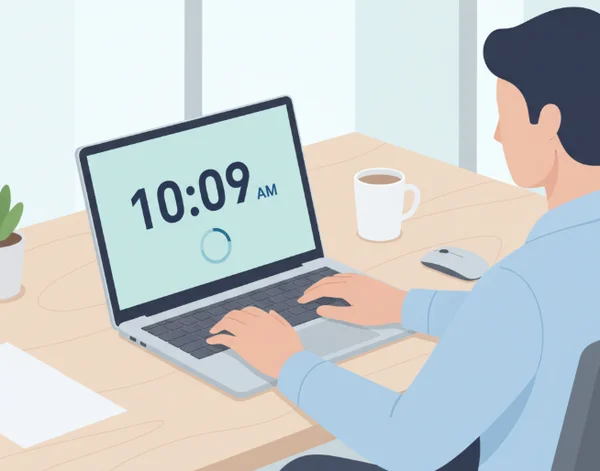
The Eisenhower Matrix is a world-renowned framework for prioritizing tasks. It helps you distinguish between what is truly important and what is merely urgent. However, many people struggle to keep this matrix top-of-mind during a busy workday. This is where a highly visual, online digital clock becomes an essential asset.
Understanding the Eisenhower Matrix Framework
The Eisenhower Matrix organizes your tasks into four categories. First are Urgent and Important tasks that require immediate attention. Second are Important but Not Urgent tasks you should schedule for later. Third are Urgent but Not Important tasks you can delegate to others. Finally, Neither Urgent nor Important tasks are ones you can eliminate entirely.
The problem is that urgent tasks demand immediate attention, while important tasks—suchs as long-term planning or skill development—often get overlooked. To master this framework, you need a visual cue. This reminds you which quadrant you are currently working in. By associating specific visual styles with these quadrants, you can maintain a high level of mental clarity throughout the day.
Setting Up Your Digital Clock for Eisenhower Matrix Implementation
To implement this effectively, use the customization toolbar to "color-code" your work sessions. For Quadrant 1 (Urgent & Important), set your clock to a bold, high-contrast color like bright red or orange. This creates a sense of healthy pressure. Use a sharp, modern font like Orbitron to keep your focus intense. This visual trigger alerts your brain that you are in "crisis management" or "critical execution" mode.
For Quadrant 2 (Important but Not Urgent), switch the clock to a calming green or blue. This encourages a flow state. It allows you to focus on quality without the stress of an immediate deadline. You can even upload a peaceful custom background to further enhance this environment. When you personalize your digital clock settings this way, you create a psychological anchor. Every time you glance at the screen, your brain recognizes the "mode" you should be in. This simple change makes it much easier to stay on track and avoid the temptation of minor distractions.
Time Blocking: Transforming Your Digital Clock into a Productivity Command Center
While the Eisenhower Matrix helps you prioritize, Time Blocking helps you execute. It is the practice of planning out every moment of your day in advance. Instead of a long to-do list, you have a series of dedicated "blocks." In these blocks, you focus on one specific type of task and nothing else.
The Fundamentals of Time Blocking
Time blocking works because it dedicatedly guards your time against "shallow work." Shallow work includes things like checking emails or attending non-essential meetings. These small tasks often fracture our attention. By creating blocks for "Deep Work," you ensure that your most difficult projects receive your full cognitive energy.
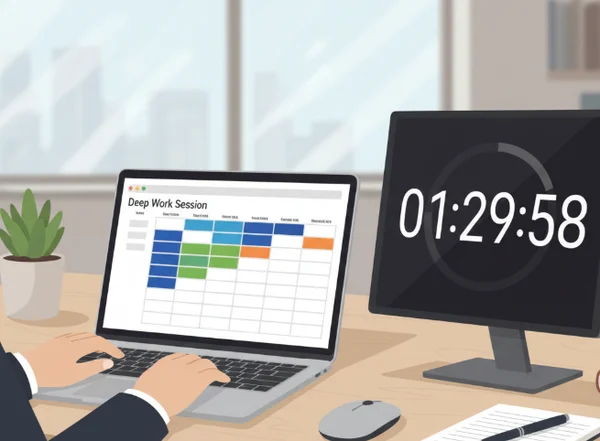
The biggest enemy of time blocking is the lack of a clear visual boundary. If you don't know exactly when a block ends, it is easy to let one task bleed into another. Using a large, clear display ensures that the transition between blocks is respected. This is why many remote workers keep a live digital clock visible on a second monitor or a tablet at all times. It acts as a silent coach, keeping you honest about your schedule.
Advanced Digital Clock Time Blocking Strategies
To take your time blocking to the next level, use the countdown and alarm features. Before starting a block, set a countdown for the duration of that task. Seeing the seconds tick down in fullscreen mode creates a "gamified" environment. You are racing against the clock to finish your deep work before the alarm sounds. This method prevents the "drifting" effect where a one-hour task stretches into two.
You can also adjust the font and layout for different types of blocks. For example, use a minimal, clean font like Roboto Mono for technical tasks or coding. Switch to a 24-hour format if you are working with international teams. This reduces the mental math required to coordinate with global colleagues. When you manage your time with these specific visual settings, you reduce the "switching cost" your brain pays when moving between different types of labor.
Integrating Break Management for Sustainable Productivity
Productivity is not just about working; it is about resting. Without scheduled breaks, your focus will inevitably decline over several hours. Use the "Digital Clock with Seconds" feature to time your breaks precisely. Whether you follow the 52/17 rule or the Pomodoro method, having a large-format clock ensures you stay disciplined. It prevents a 5-minute break from turning into a 30-minute social media scroll.
Set your clock to a dim, low-opacity setting during breaks. This signals to your brain that the high-intensity work period is over. By making these visual changes, you build a sustainable rhythm that prevents burnout. You can adjust your clock's visual elements to signal the end of your rest. This ensures you return to your next block refreshed and ready to perform at your peak.
Time Boxing: Precision Time Management with Digital Clock Features
While time blocking is about scheduling, Time Boxing is about limitation. It is a technique where you "box" a task into a fixed period. This is particularly useful for tasks that tend to expand to fill the time available. Common examples include deep research, administrative work, or clearing out a cluttered inbox.
The Time Boxing Method Explained
The philosophy behind time boxing is "Parkinson’s Law." This law states that work expands to fill the time available for its completion. If you give yourself all afternoon to write a report, it will take all afternoon. If you give yourself a 60-minute "box," you will find ways to be more efficient. You focus on the essential components rather than perfectionist details.
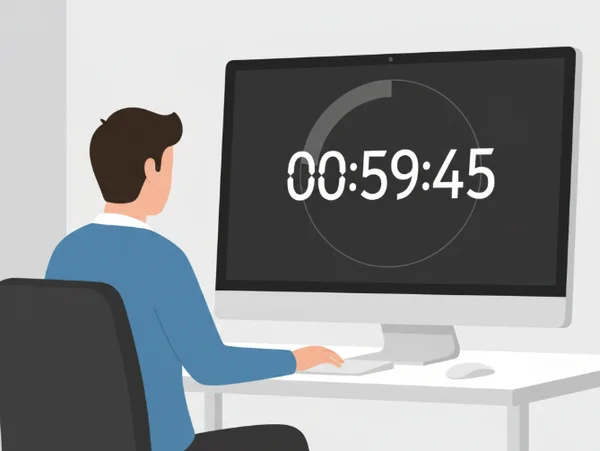
Time boxing requires a high level of discipline and a very accurate way to track the passing seconds. You need to be able to see the time from across the room. Clicking through tabs or waking up your phone creates new distractions. A fullscreen clock is the perfect solution. It turns your entire screen into a dedicated timer that demands your attention.
Implementing Time Boxing with Digital Tools
To implement this, start by identifying a task that usually takes too long. Open the customization menu and set the clock to its largest size. If you are presenting to a group or working in a classroom, the "Large Digital Clock" mode is essential. This ensures that everyone involved can see the remaining time clearly.
During a time box session, use the "Lock Screen" style layout to hide all other UI elements. This creates a "monastic" work environment. If you are a student or a remote team lead, having this massive visual indicator helps you stay disciplined. When the time box is up, stop immediately. If the task isn't finished, box it again for later. This builds a habit of speed and decisiveness. You should customize your clock's appearance to see how much faster you can work when you are staring at your deadline.
Implementing Advanced Time Management with Digital Clocks
With these techniques and the right visual cues, you'll find yourself accomplishing more in less time, with less stress. Mastering time management is not about working more hours. Instead, it is about making every minute count toward your goals. By combining frameworks like the Eisenhower Matrix, Time Blocking, and Time Boxing with a customizable digital clock, you take control of your workday.
The ability to change colors, fonts, and backgrounds provides more than just aesthetic value. It is a tool for psychological priming and intense focus. Whether you are managing a global team or studying for a difficult exam, a clear display provides the structure you need. Visual cues help bridge the gap between planning and execution.
Take control of your time today—your future self will thank you for it. Visit the site today to set up your productivity command center. Choose your colors, pick your font, and enter fullscreen mode to experience a new level of focus. Start implementing these advanced techniques now and unlock your true potential.
Frequently Asked Questions About Advanced Time Management with Digital Clocks
How do I set up multiple timers for time blocking?
While the main display shows the current time, you can use the countdown and alarm features to manage specific blocks. To handle multiple blocks, many users open the tool in different browser tabs. Each tab can be customized for a specific task. For example, use one tab for a 25-minute work session and another for a 5-minute break. You can quickly start your test of this workflow by opening the site and adjusting the settings in seconds.
Can I use the digital clock for implementing the Pomodoro Technique?
Yes! The Pomodoro Technique is a perfect fit for this tool. You can use the countdown function to set your 25-minute focus period. Use the fullscreen mode to ensure you aren't distracted by other apps. When the timer ends, the alarm will alert you to take a break. The high visibility of the online digital timer helps you stay committed to the cycle throughout the day.
What's the best way to customize my clock for visual time management?
For high-intensity work, we recommend high-contrast colors like white text on a black background. Bold fonts like Orbitron work well for visibility. For creative or low-stress work, try softer colors and a custom background image that inspires you. The "opacity" slider is also very helpful. It allows you to keep the clock visible but slightly transparent over your background, reducing visual fatigue during long sessions.
How can I use the clock's fullscreen mode to minimize distractions?
Simply click the "Maximize" or "Fullscreen" button on the toolbar. This removes the browser address bar, bookmarks, and OS taskbar from your view. It transforms your computer or second monitor into a dedicated time-tracking device. This is especially effective for the "Time Boxing" method. In that framework, seeing the time clearly is the main priority to ensure you meet your fixed deadlines.
Is it possible to save my customized time management setups?
Most modern browsers will remember your settings via cookies. When you return to the site, your favorite fonts and colors will still be there. This allows you to quickly jump back into your productivity rhythm every morning. You won't have to spend time re-configuring your workspace. Go ahead and set your preferences now, and they will be ready for you tomorrow.